Step 1: Sign in
Go to aimforfive.com/teach and choose Sign in. Use Continue with Google (your school Google account works) or type your email and we'll send you a sign-in link. There's no password to remember.
Teacher and student accounts are the same kind of account. What makes you the teacher is making a class, so there's nothing else to set up and nothing for your school to approve.
Step 2: Ask for teacher access
This step is optional, and you can do everything else while you wait. Teacher access turns on the teacher-only question bank: exam-style questions that never appear on public pages or in search, so students can't look up the answers.
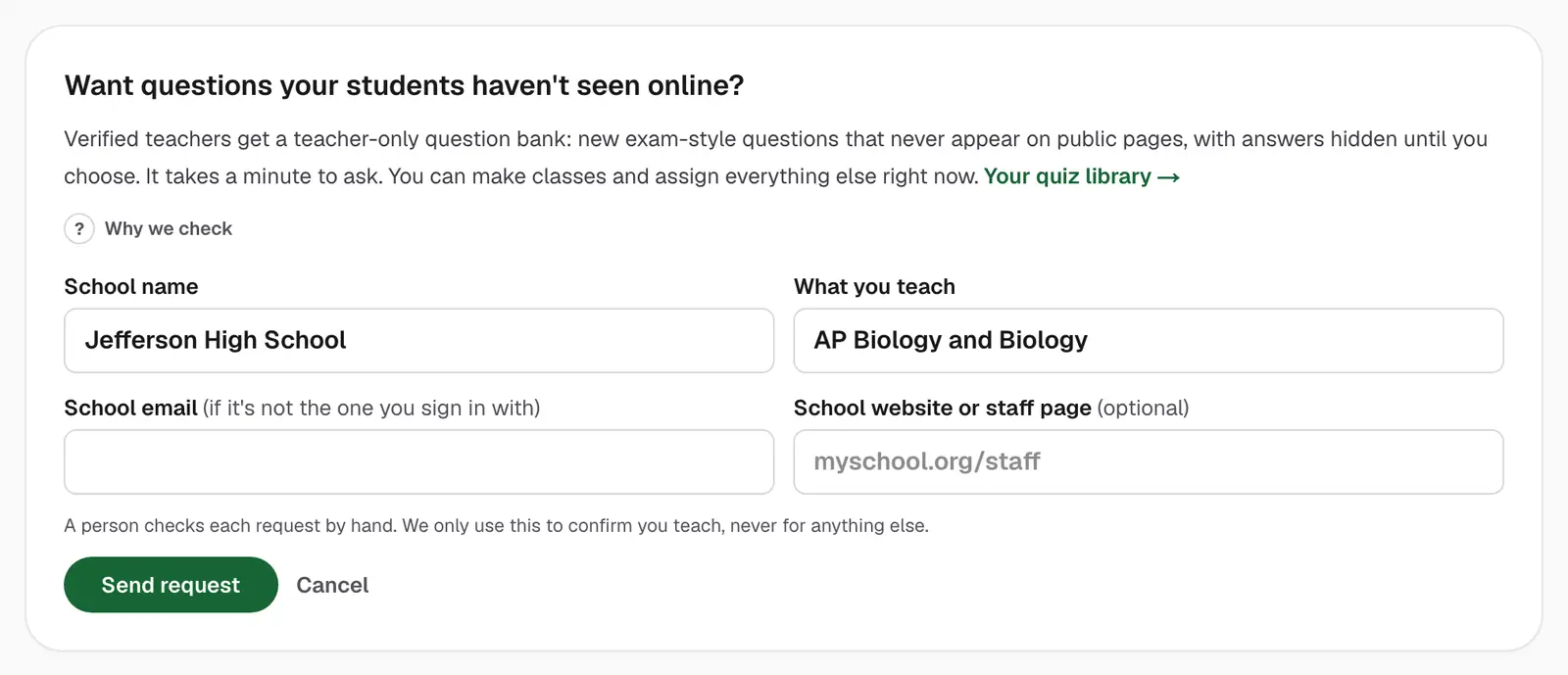
Because students could otherwise sign up as teachers, a person checks each request. On /teach, choose Request teacher access and fill in:
- your school's name and what you teach,
- your school email, if it isn't the one you signed in with,
- a school website or staff page, if you have one (optional, but it speeds things up).
We usually reply within a couple of days, and you'll get an email when you're approved.
Teacher-only questions are ready for 10 courses: US History, European History, US Government, Biology, Chemistry, Environmental Science, Psychology, Precalculus, Calculus AB and Calculus BC. They're coming next for Human Geography, Macroeconomics, Microeconomics, Physics 1 and Statistics. Everything else in this guide works with the public questions, with or without teacher access.
Step 3: Make a class
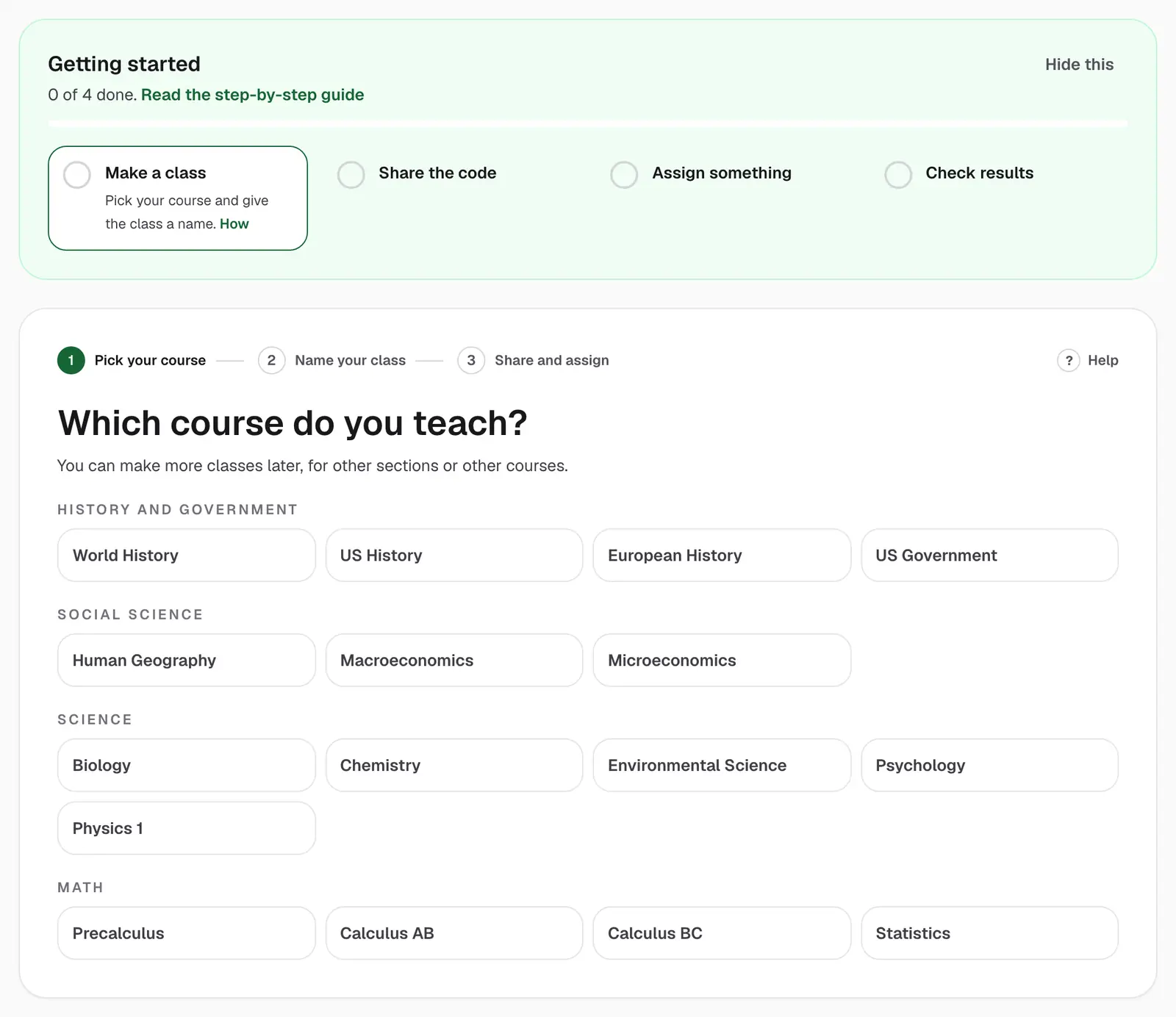
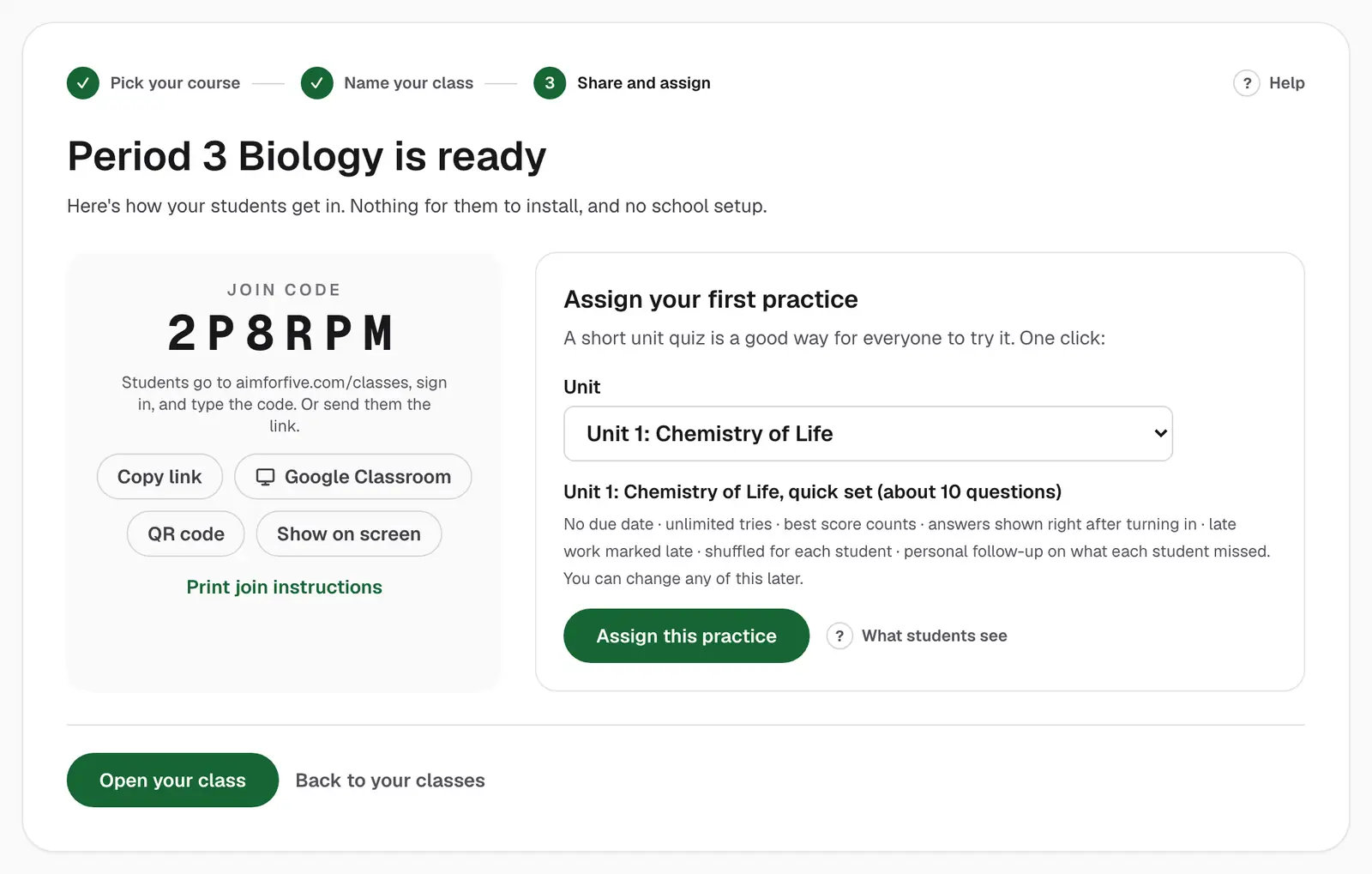
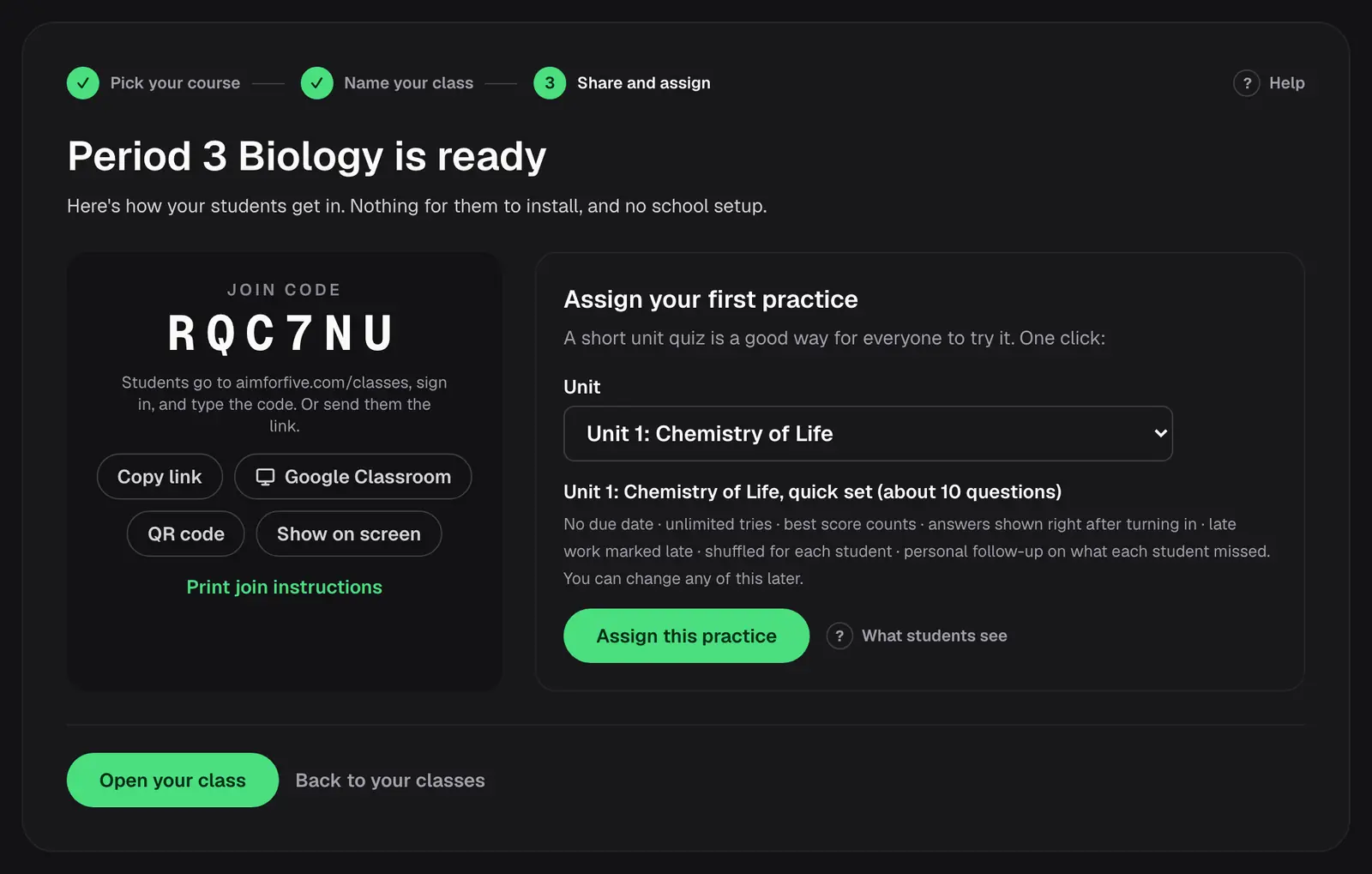
The first time you open /teach, three short steps make your first class:
- Pick your course. Every course on the site is there: World History, US History, European History, US Government, Human Geography, Macroeconomics, Microeconomics, Biology, Chemistry, Environmental Science, Psychology, Physics 1, Precalculus, Calculus AB, Calculus BC, Statistics.
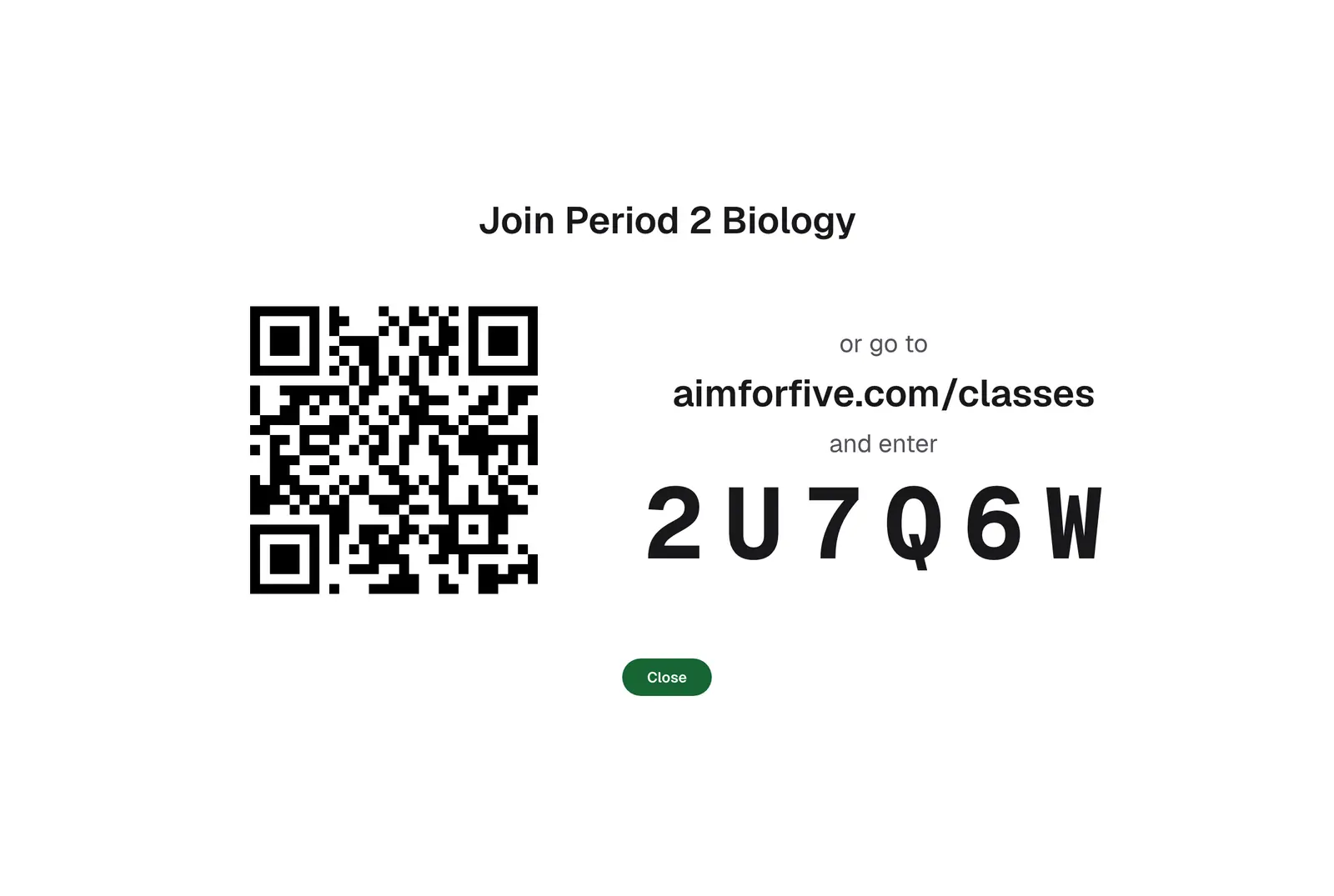
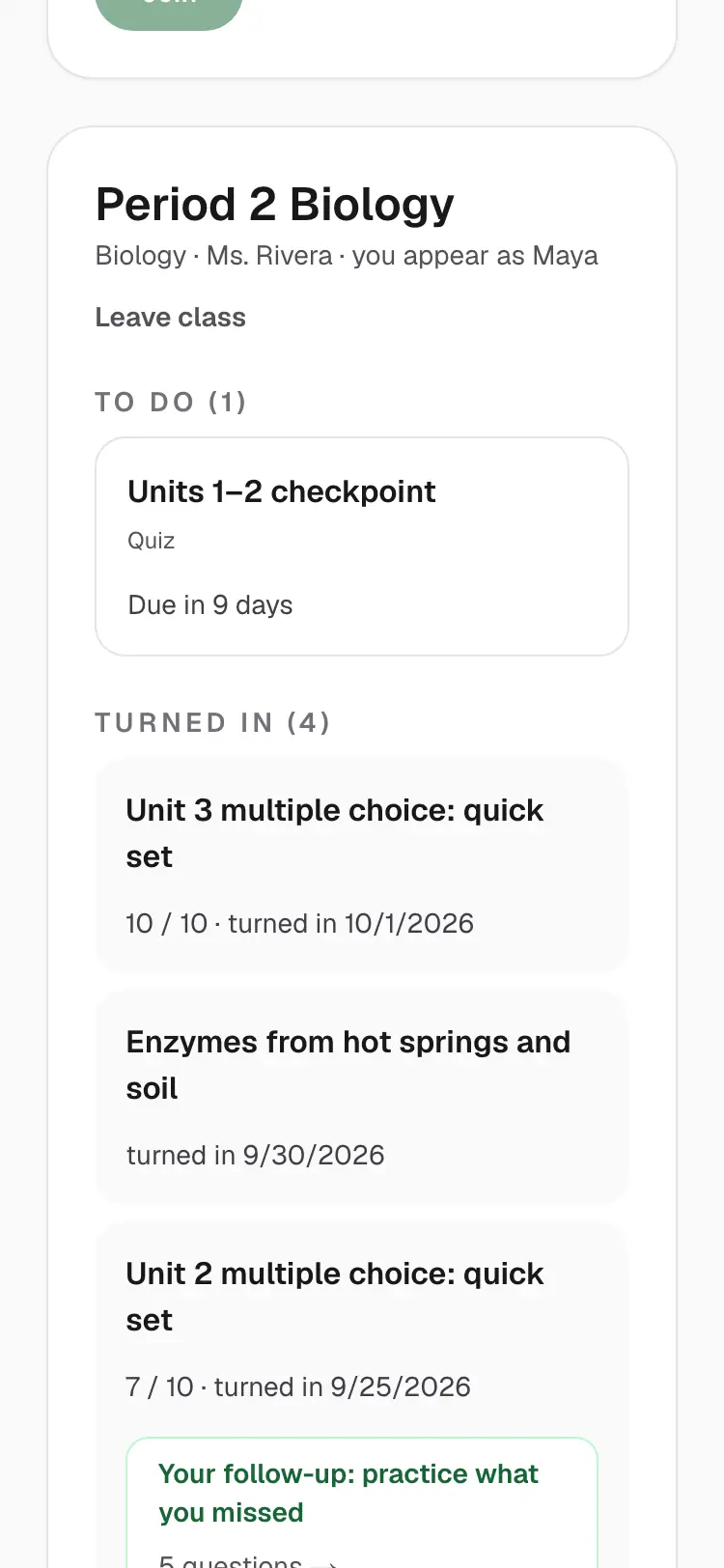
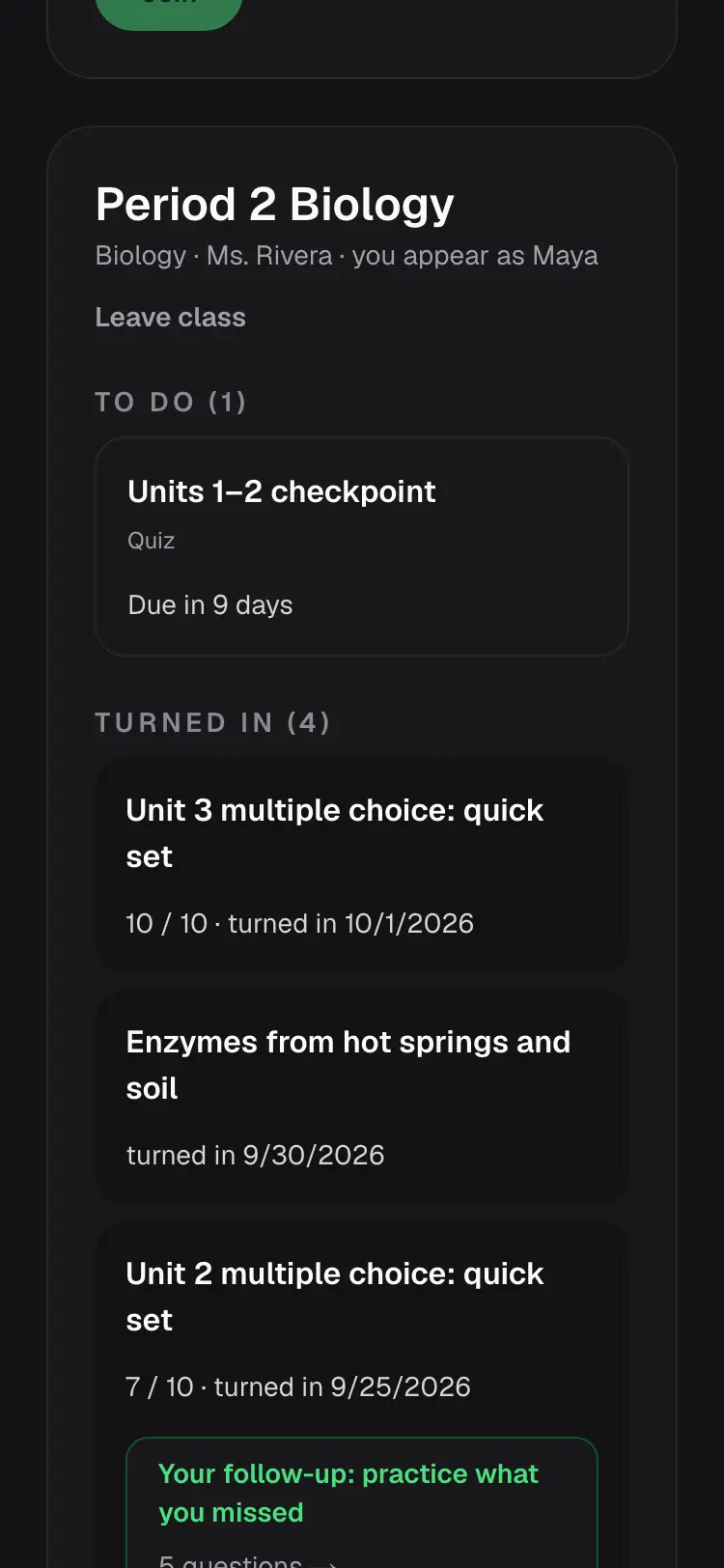
- Name your class. Students see this name when they join, so a period or section works well, like “Period 2 Biology”.
- Share and assign. You get your join code right away (next step).
Step 4: Share the join code
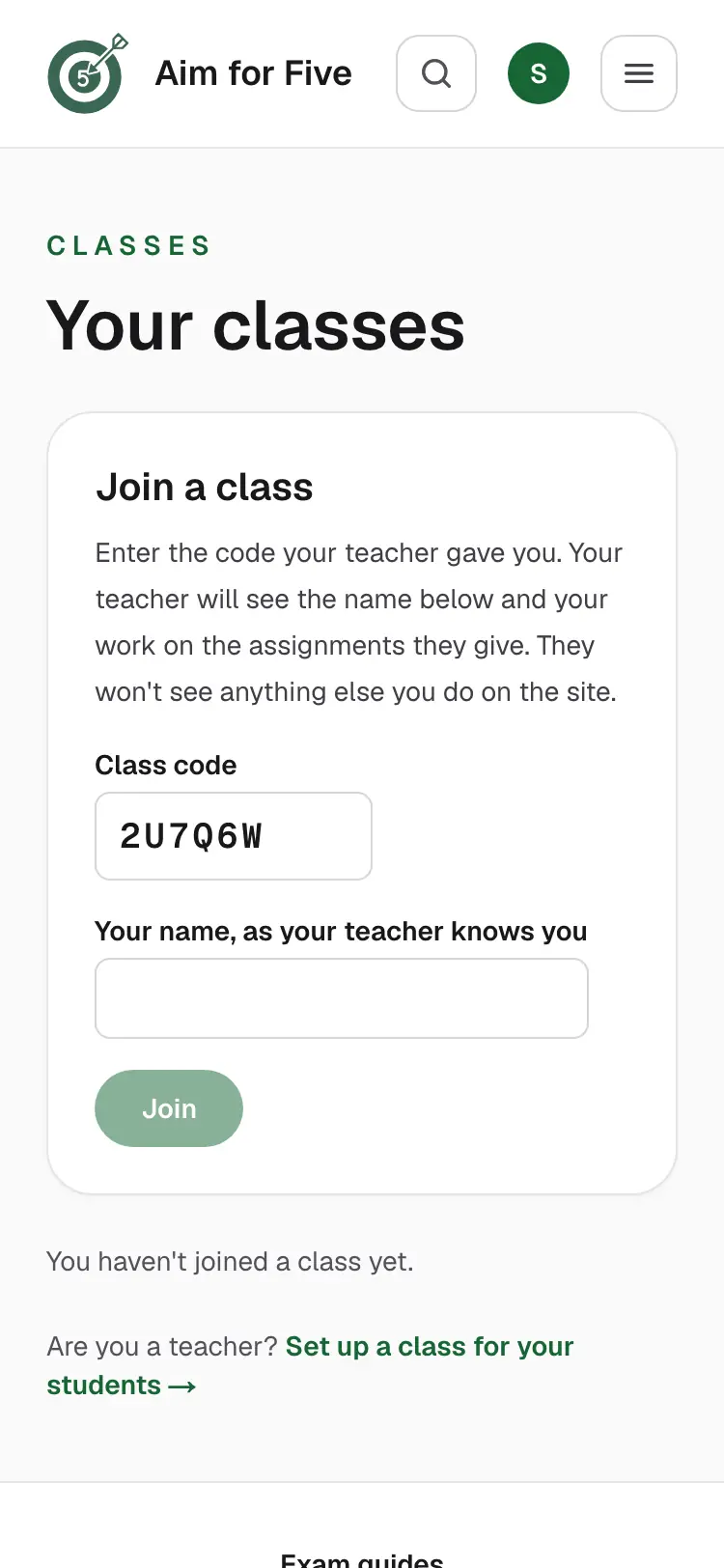
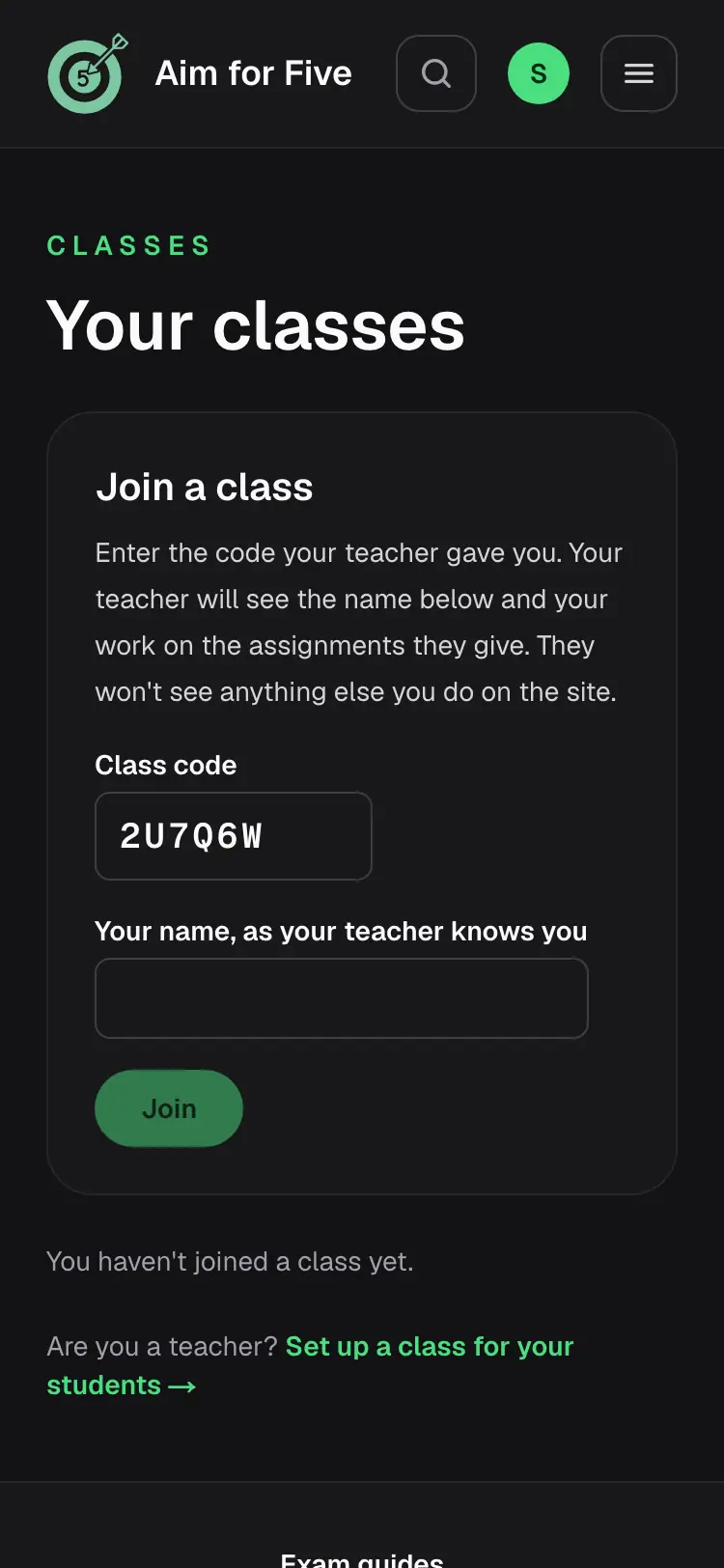
Every class has a six-letter join code. Students go to aimforfive.com/classes, sign in, type the code and the name you know them by, and they're in. Share it whichever way suits your room:
- Copy link: a join link with the code already filled in, for email or your class page.
- Google Classroom: posts the join link to your Google Classroom class.
- QR code: students scan it with their phone camera.
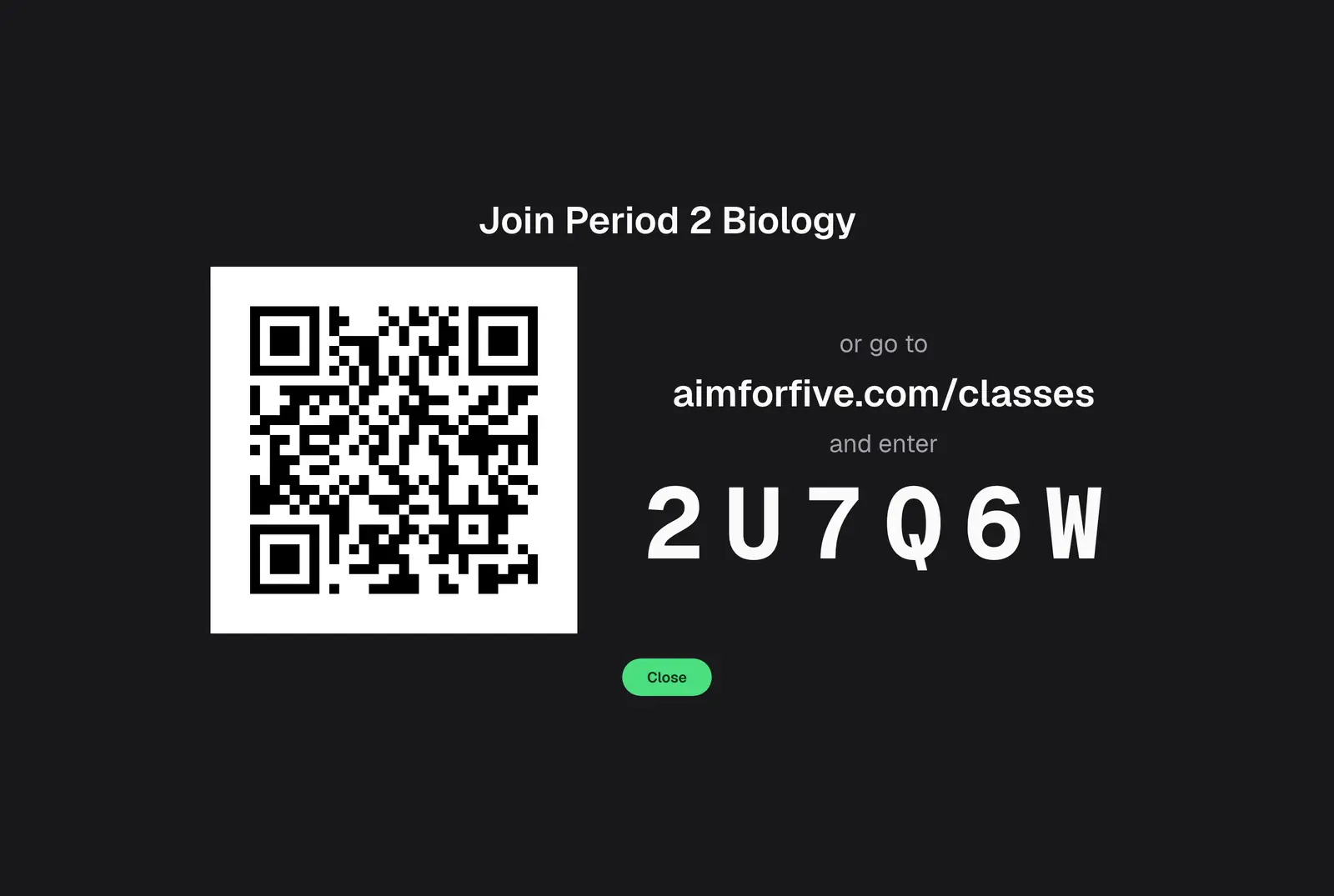
- Show on screen: the code, the address and a big QR code, full screen for the projector.
- Print join instructions: a one-page handout with the code, a QR code, three steps for students, and slips to cut out.
Step 5: Assign your first practice
Right after you make a class, Assign this practice gives everyone a short Unit 1 multiple choice set in one click. After that, open the class and choose New assignment:
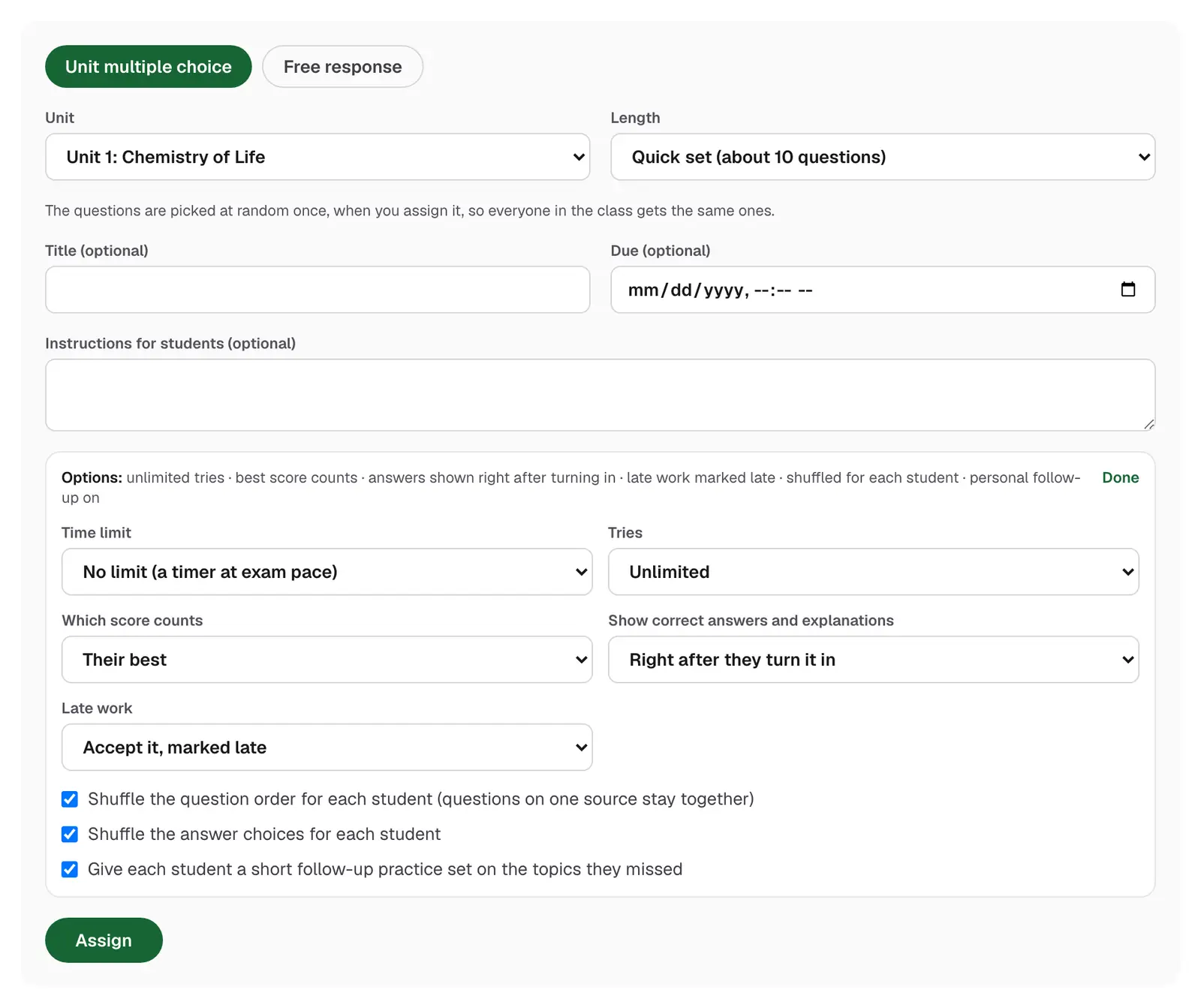
- Unit multiple choice: a quick set of about ten questions, half the unit, or the whole unit. Shorter sets are drawn once, so everyone gets the same questions.
- Free response: one of the course's free-response questions, scored by rubric row (see step 8).
- In World History you can also assign full practice exams and DBQ, long essay and short answer questions.
- Build a quiz to pick exact questions yourself (step 9).
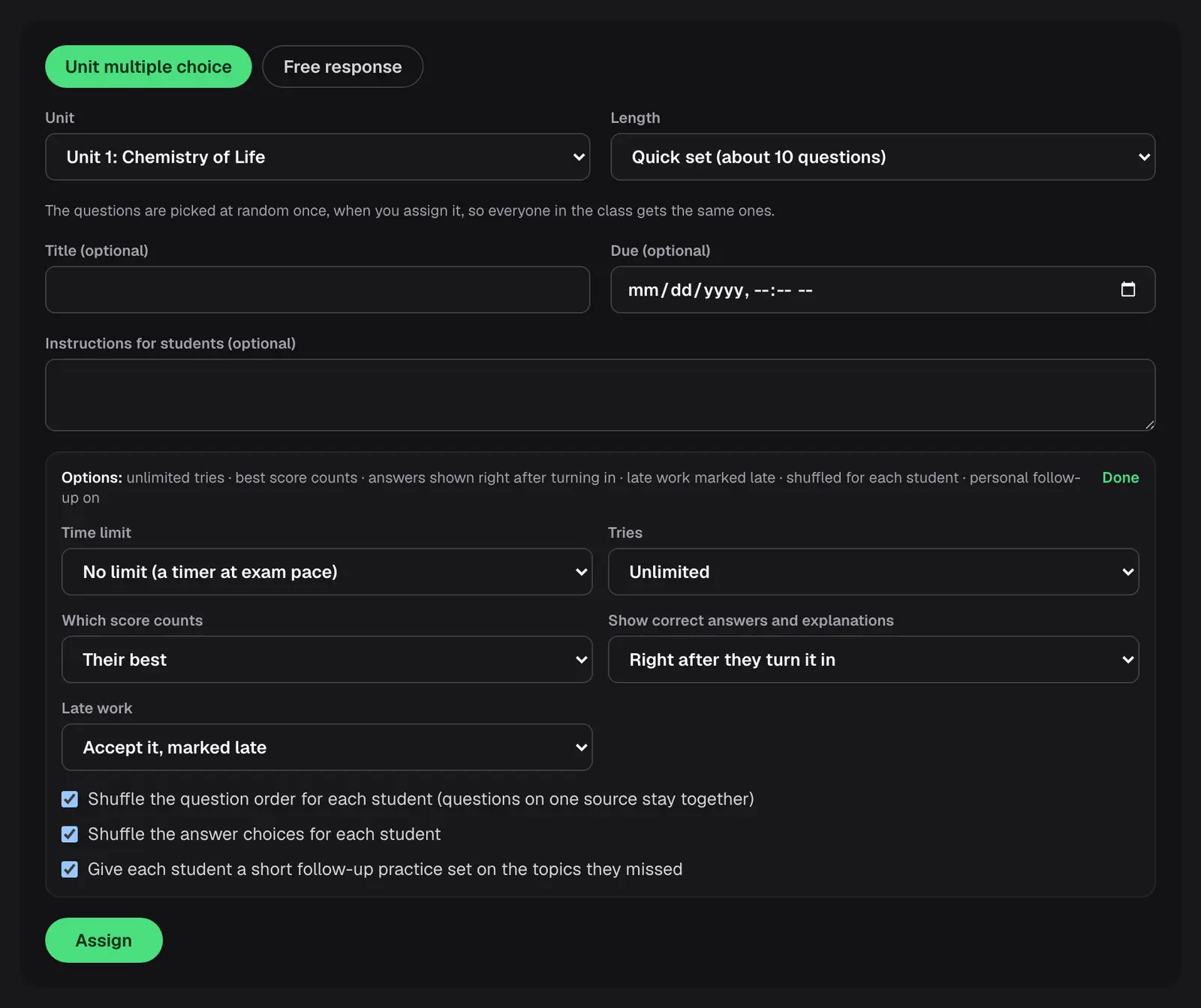
A title, due date and instructions are all optional. The options start with sensible defaults:
| Option | Starts as |
|---|---|
| Time limit | None (students see a timer at exam pace) |
| Tries | Unlimited, and their best score counts (one try for teacher-only questions) |
| Answers and explanations | Shown right after turning in (for teacher-only questions: after the due date, or when you release them) |
| Late work | Accepted, and marked late |
| Shuffling | Question order and answer choices shuffled for each student |
| Follow-up | On: each student gets a short practice set on the topics they missed |
Choose Change on the Options line to adjust any of them. The server enforces every rule, so a student can't get around a time limit or see answers early.
Step 6: See the results
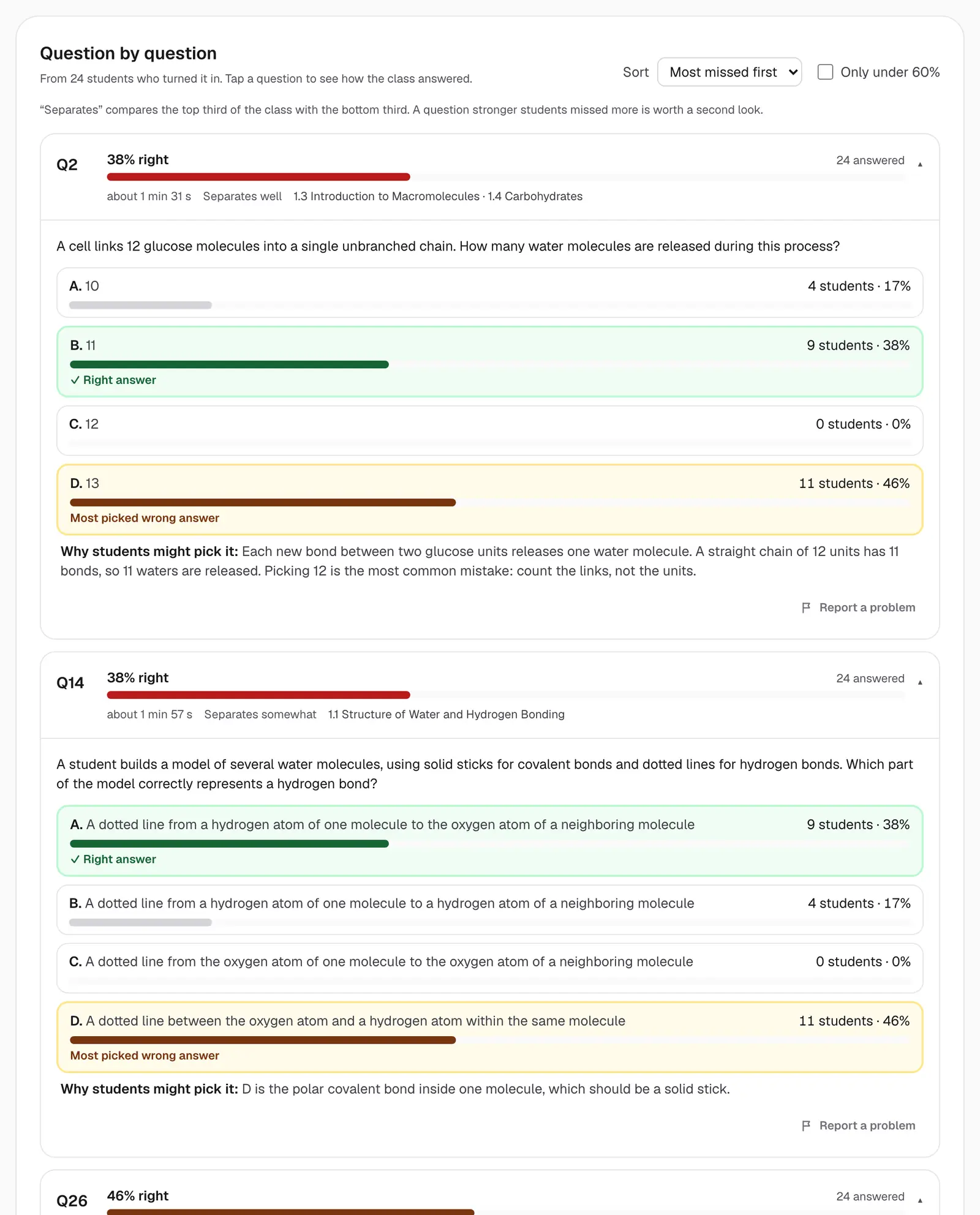
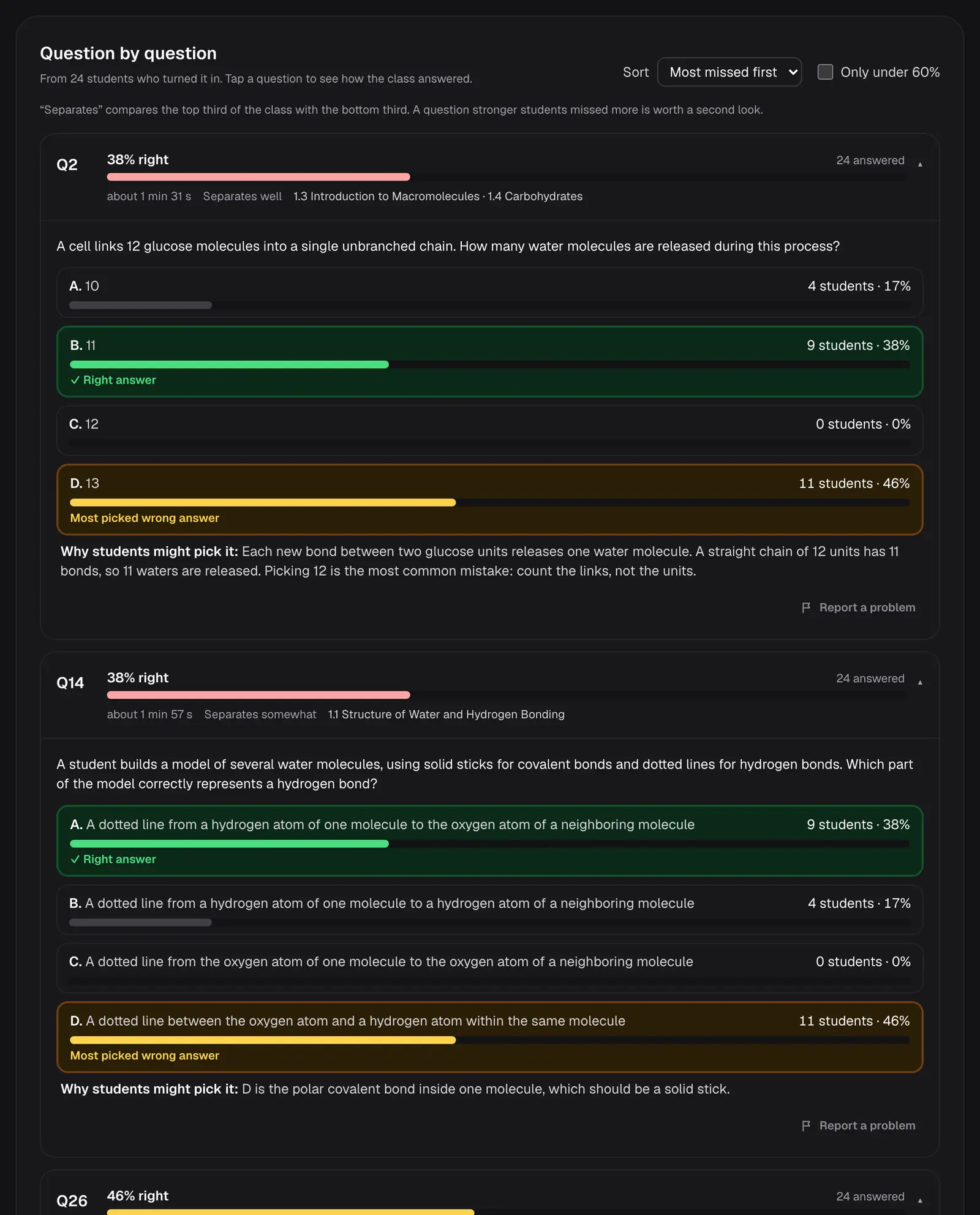
The class's Assignments tab shows how many students turned in each assignment and the class average. Open one to see every student's score and time, and Question by question:
- the most missed questions first, with the share who got each one right,
- how many students picked each choice, with the most picked wrong answer and why it's tempting,
- how long students took, and whether a question separates stronger and weaker students.
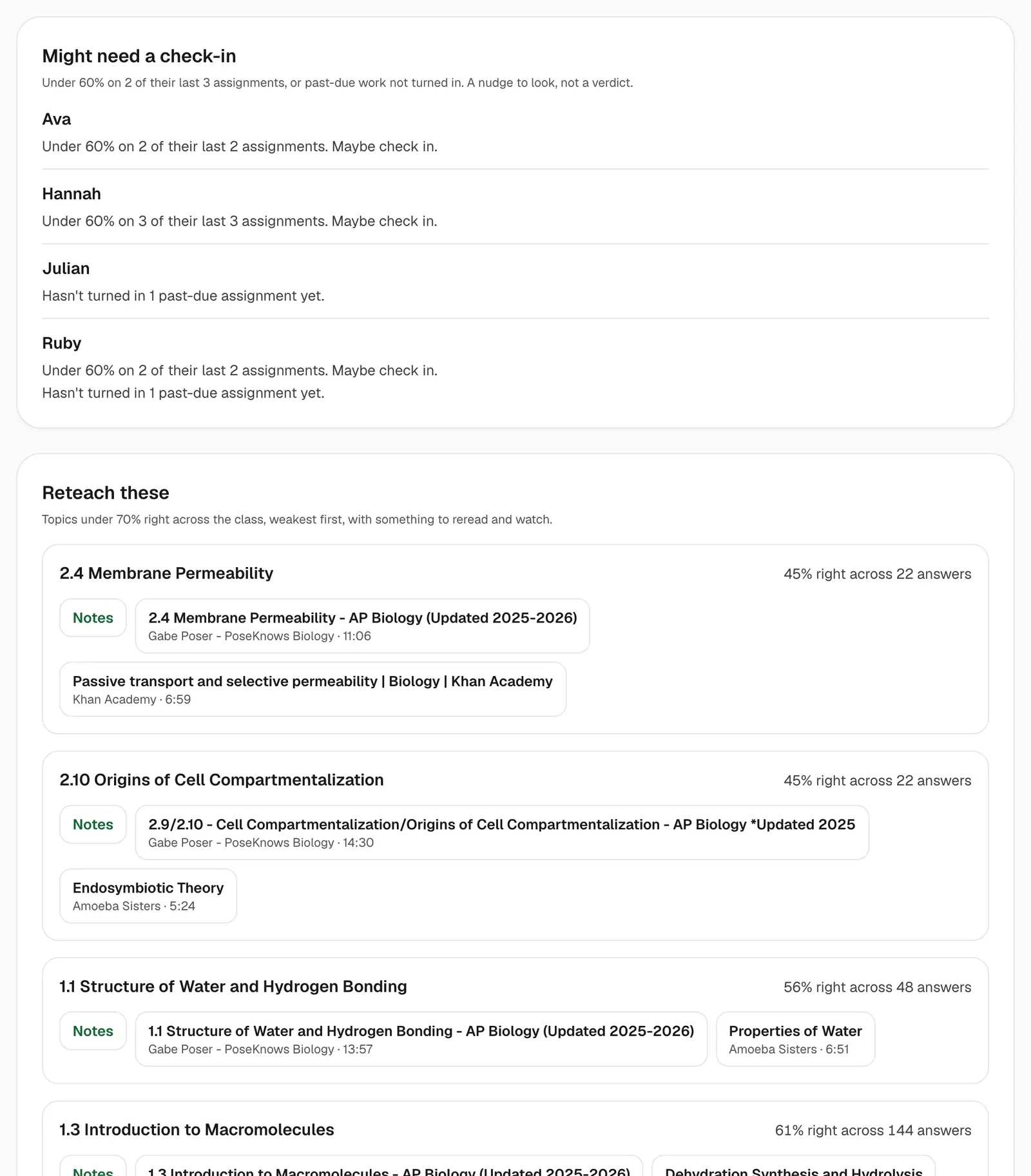
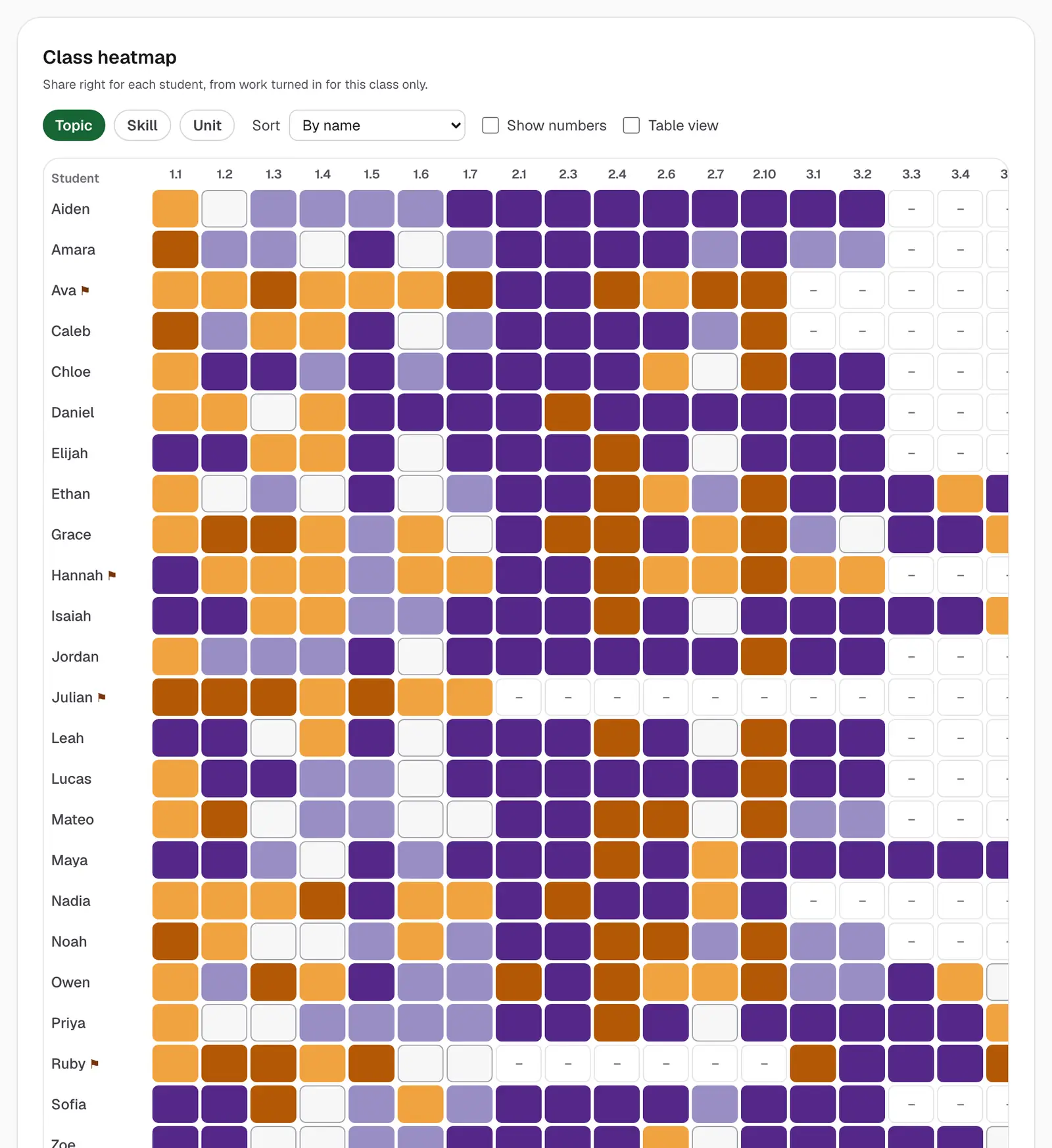
The Insights tab looks across all your assignments for the class:
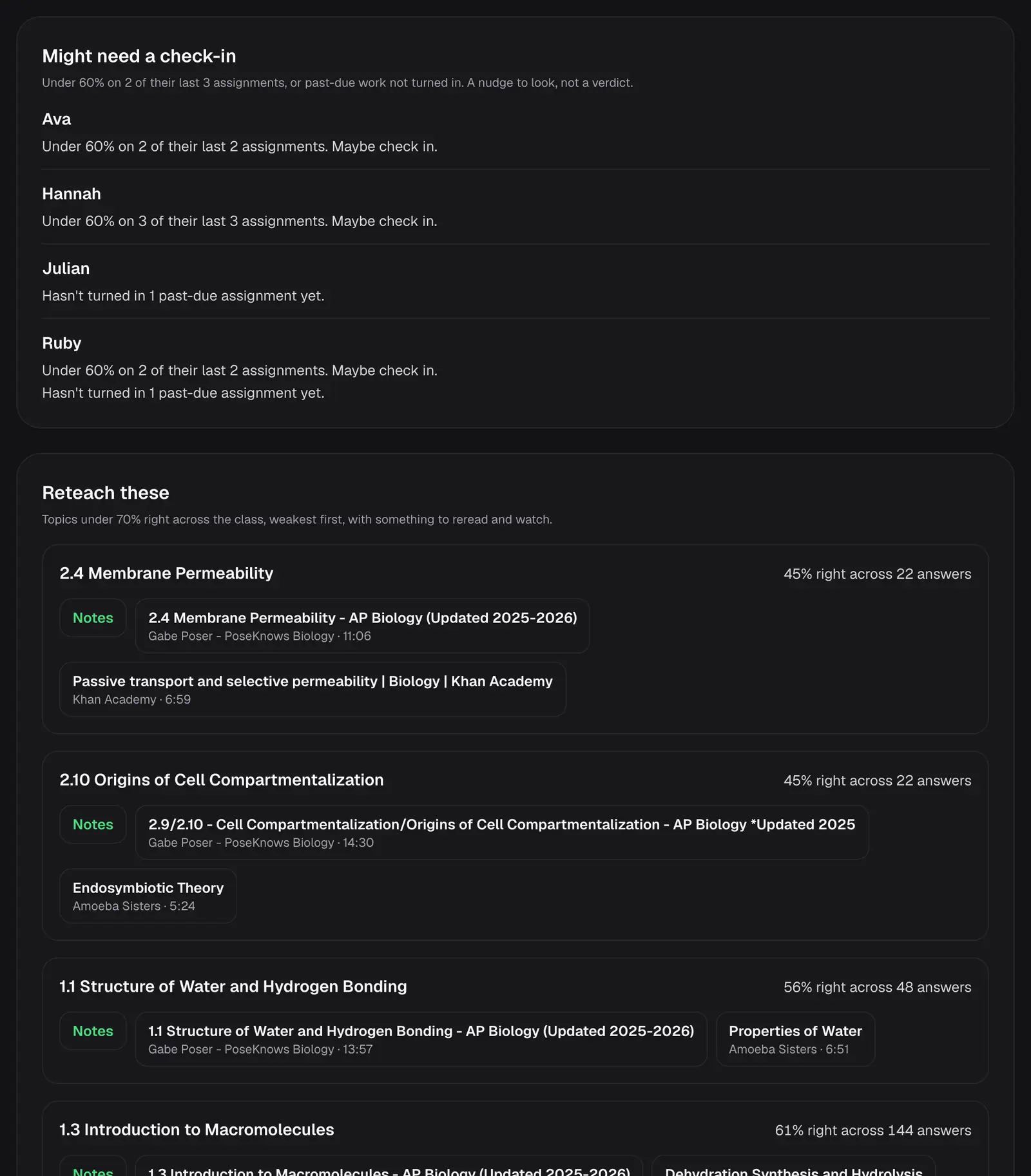
- Might need a check-in: students under 60% on two of their last three assignments, or with past-due work not turned in. A nudge to look, not a verdict.
- Reteach these: topics under 70% across the class, weakest first, each with notes and videos to use and a short follow-up set you can assign in one click.
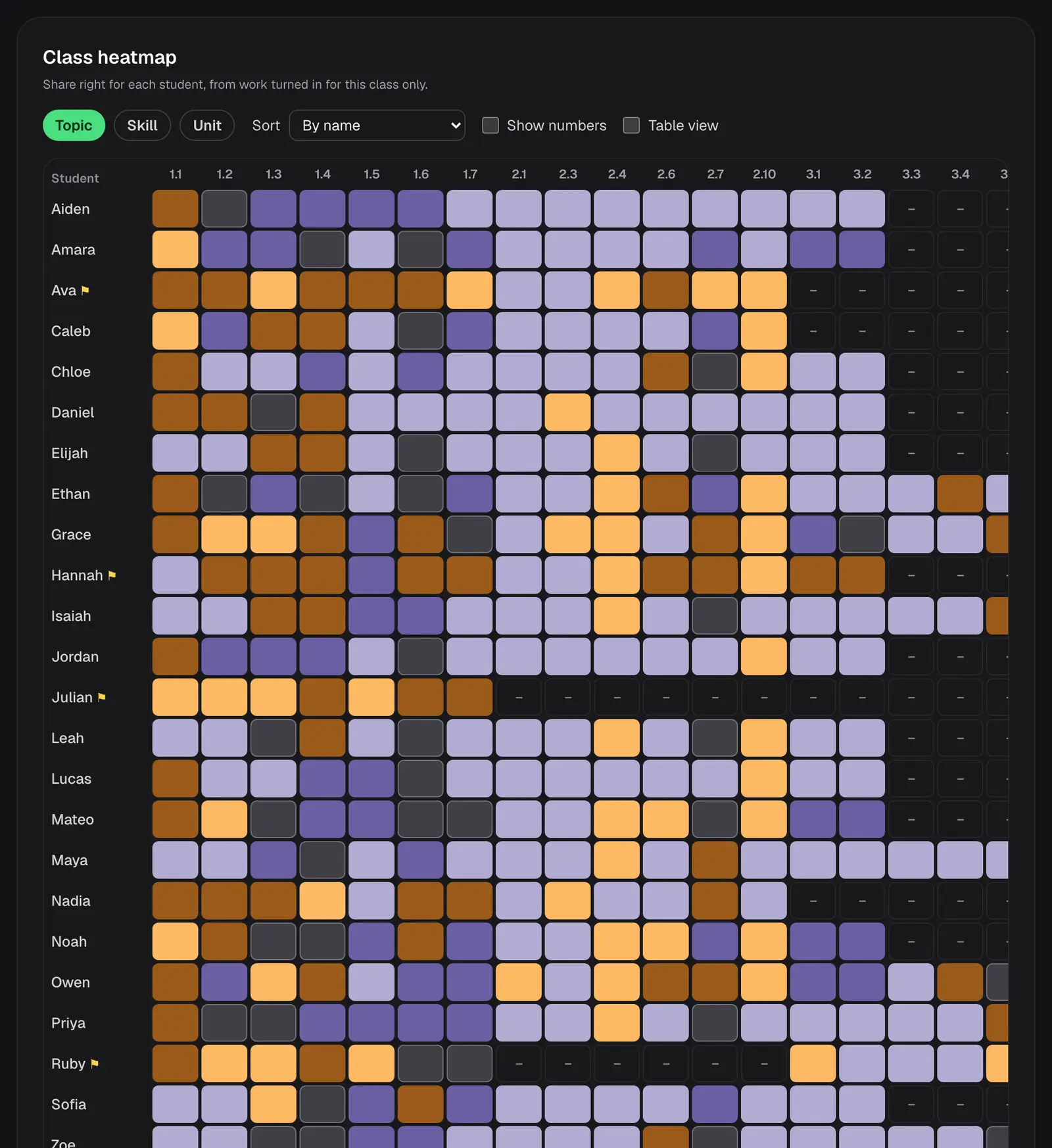
- Class heatmap: each student's share right by topic, skill or unit, with numbers on hover or tap and a plain table view.
Step 7: Pace to exam day
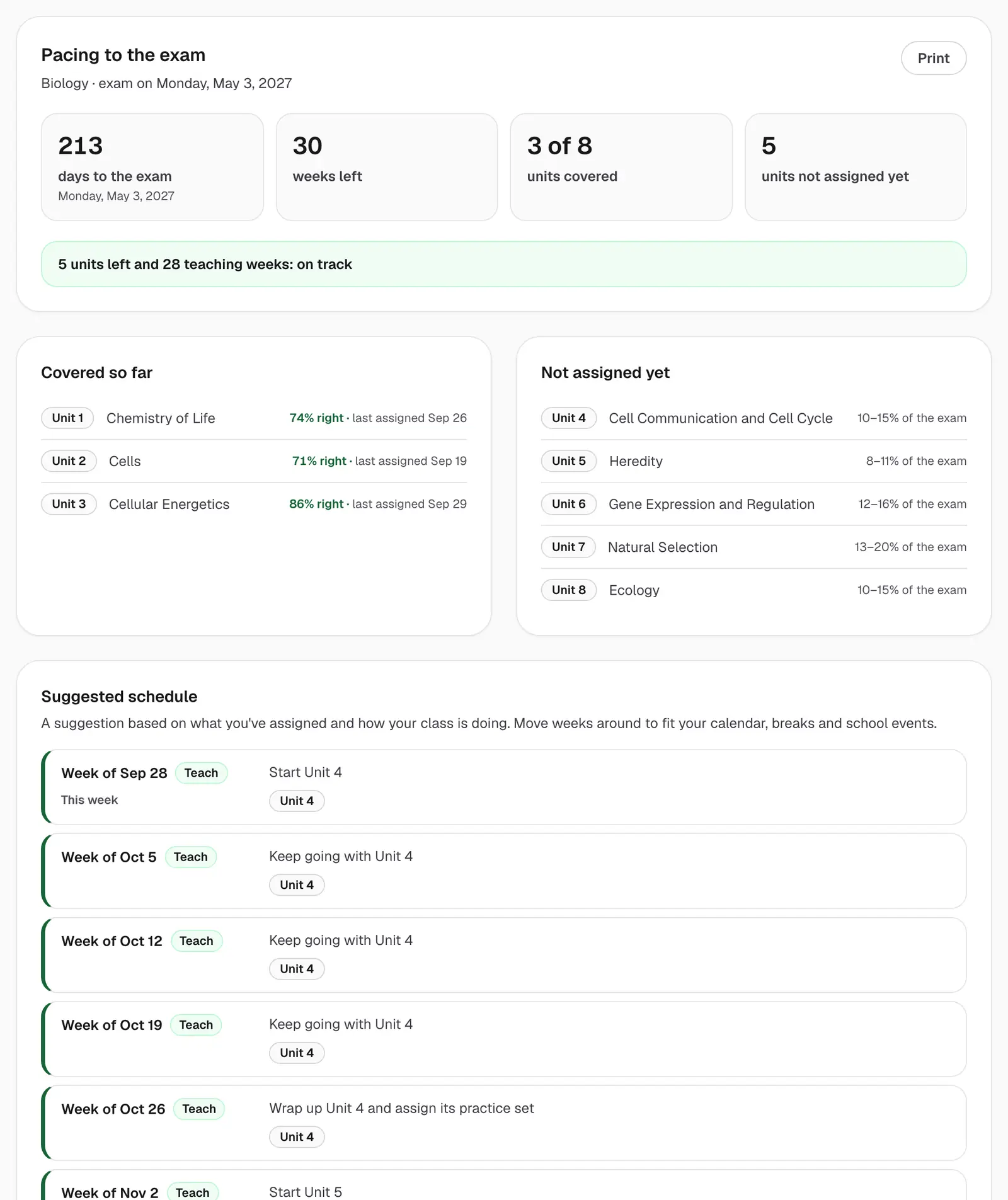
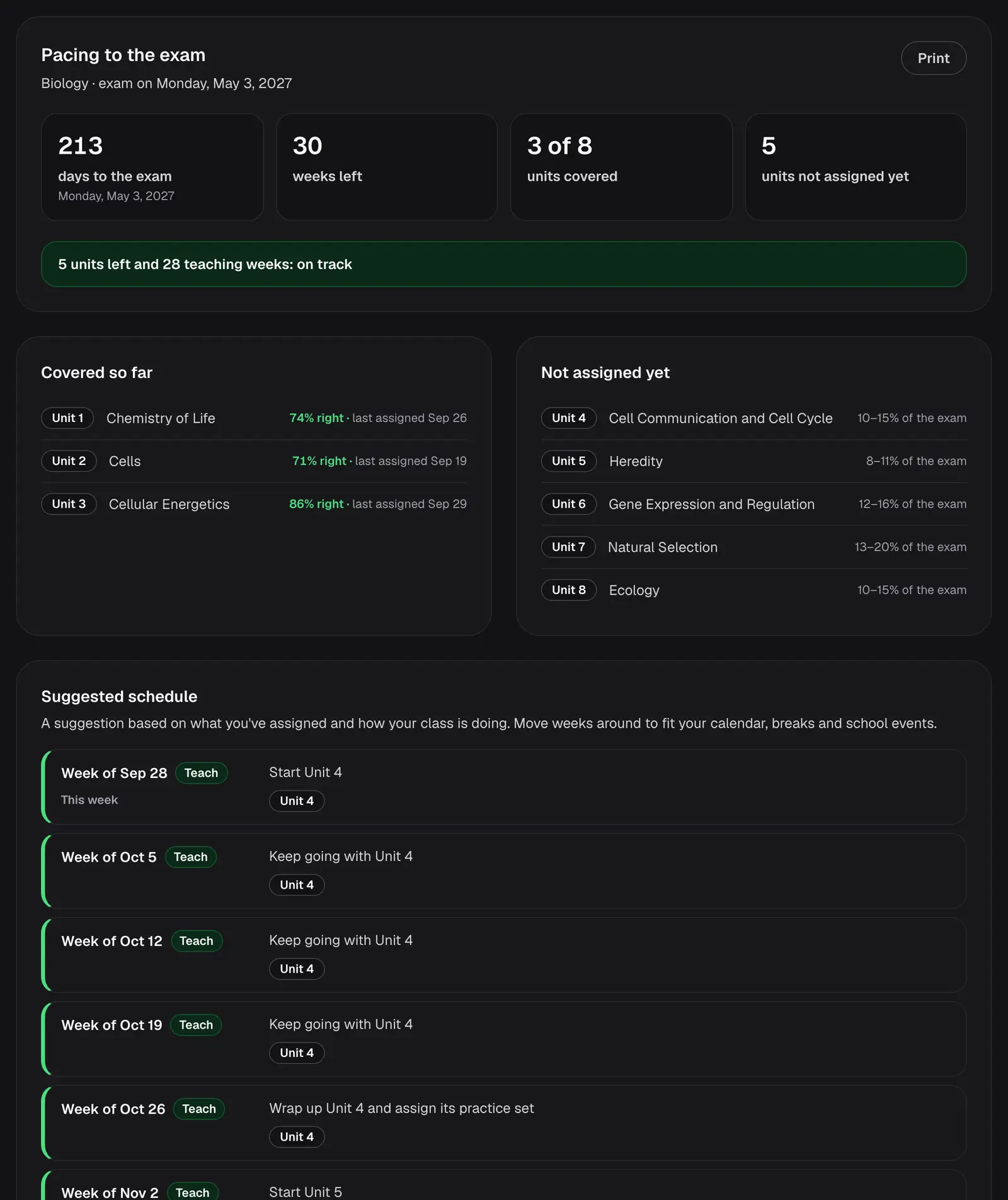
The Pacing tab counts the days and teaching weeks to the exam, shows which units you've covered (with how the class did) and which you haven't assigned yet, and suggests a week-by-week schedule. It's a suggestion, so move weeks around to fit your calendar, and print it if that helps.
Step 8: Score free response
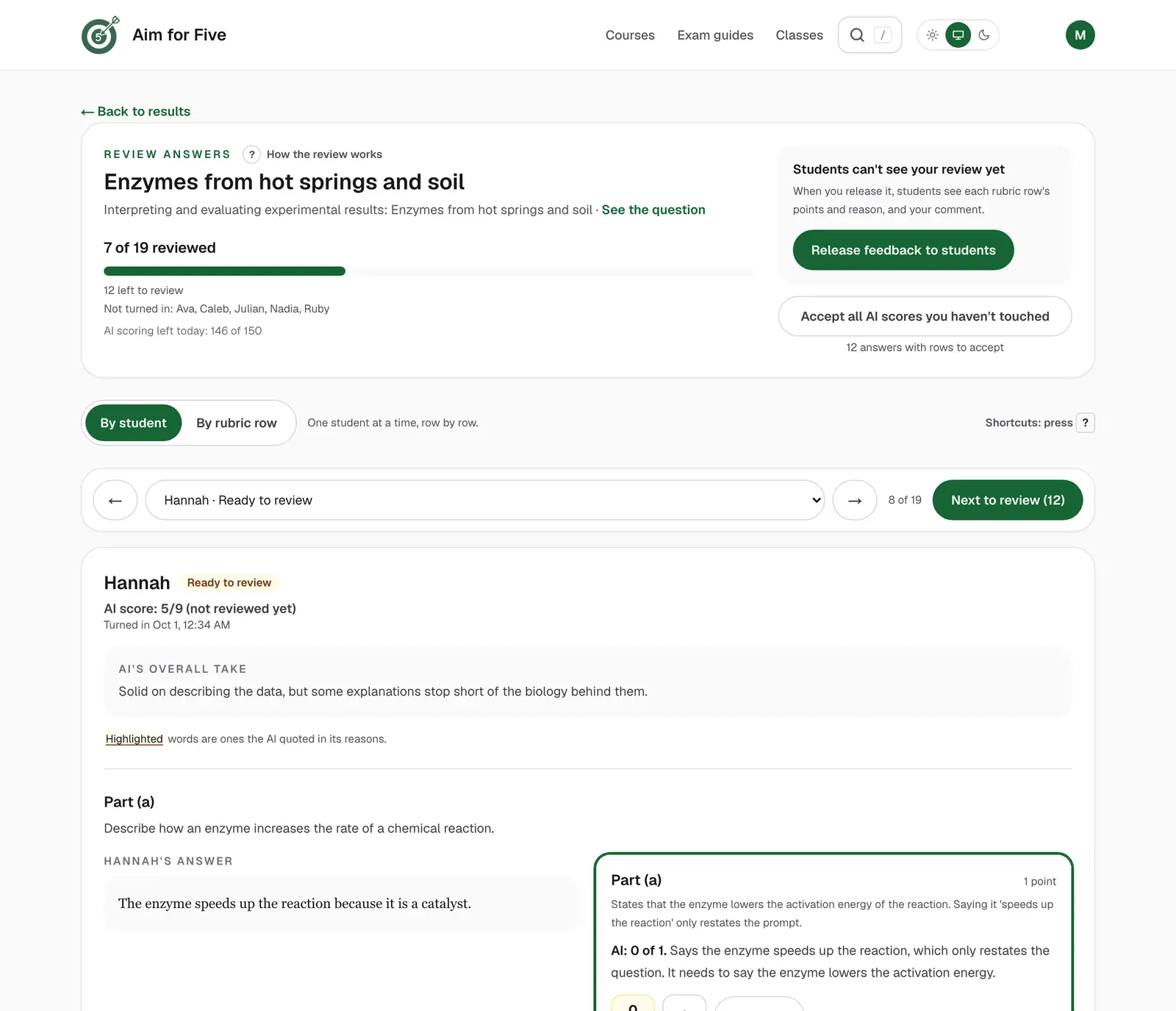
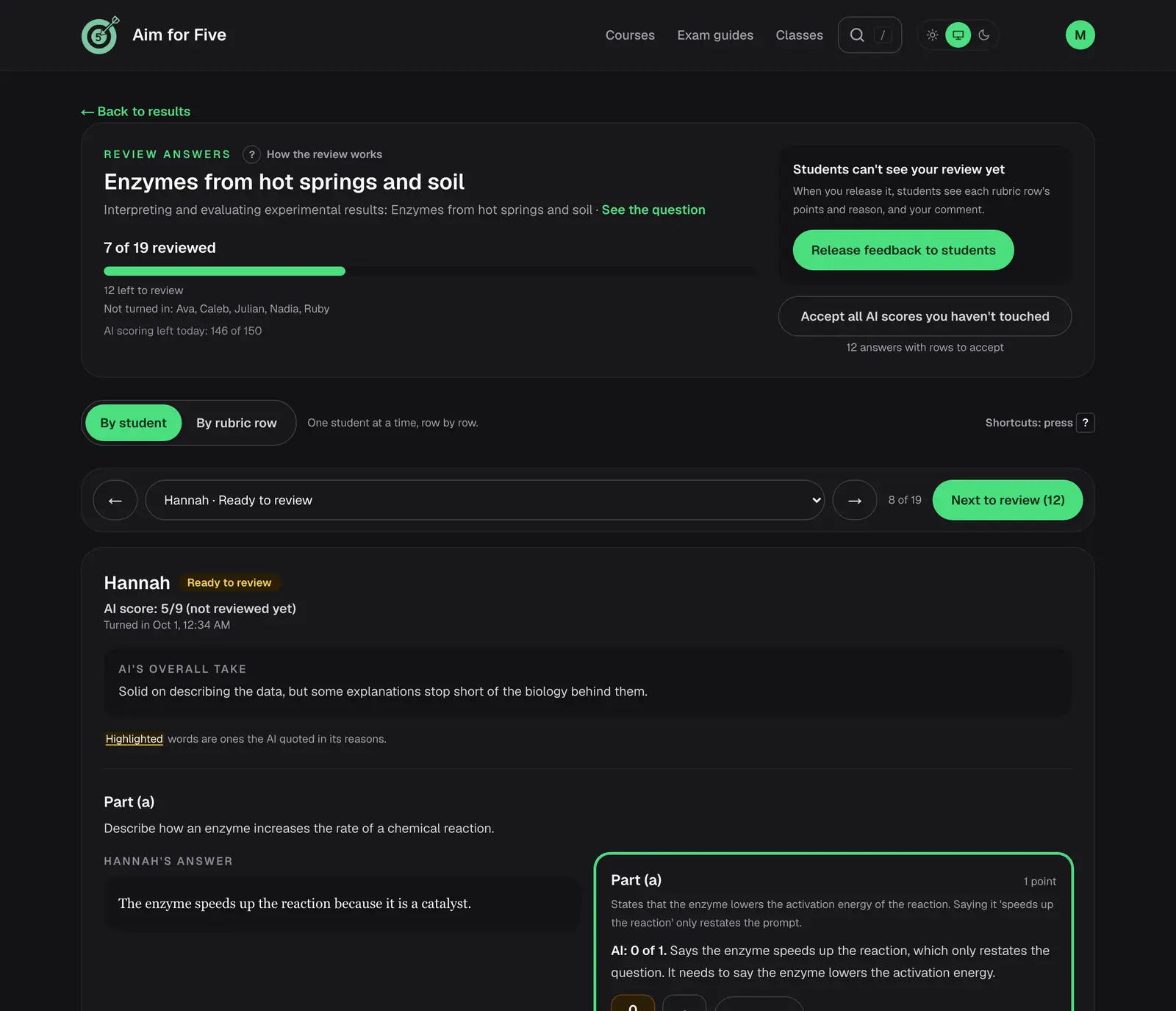
Assign a free-response question and students type their answer part by part. When they turn it in, open the assignment and choose Review answers.
- The AI scores each answer row by row against the question's rubric, with a short reason for every row. It's a first pass: it can be wrong, and you have the final say.
- Go by student, one answer at a time, or by rubric row, like everyone's part (b) in a row. Accept each row with one click or change its points. Keyboard shortcuts make it quick (press ? to see them).
- Add a comment if you like. When you agree with the rest, Accept all AI scores you haven't touched.
- Choose Release feedback to students. Only then do students see each row's points and reason, and your comment. Your scores replace the AI's everywhere, including the gradebook.
Step 9: Build and print a quiz
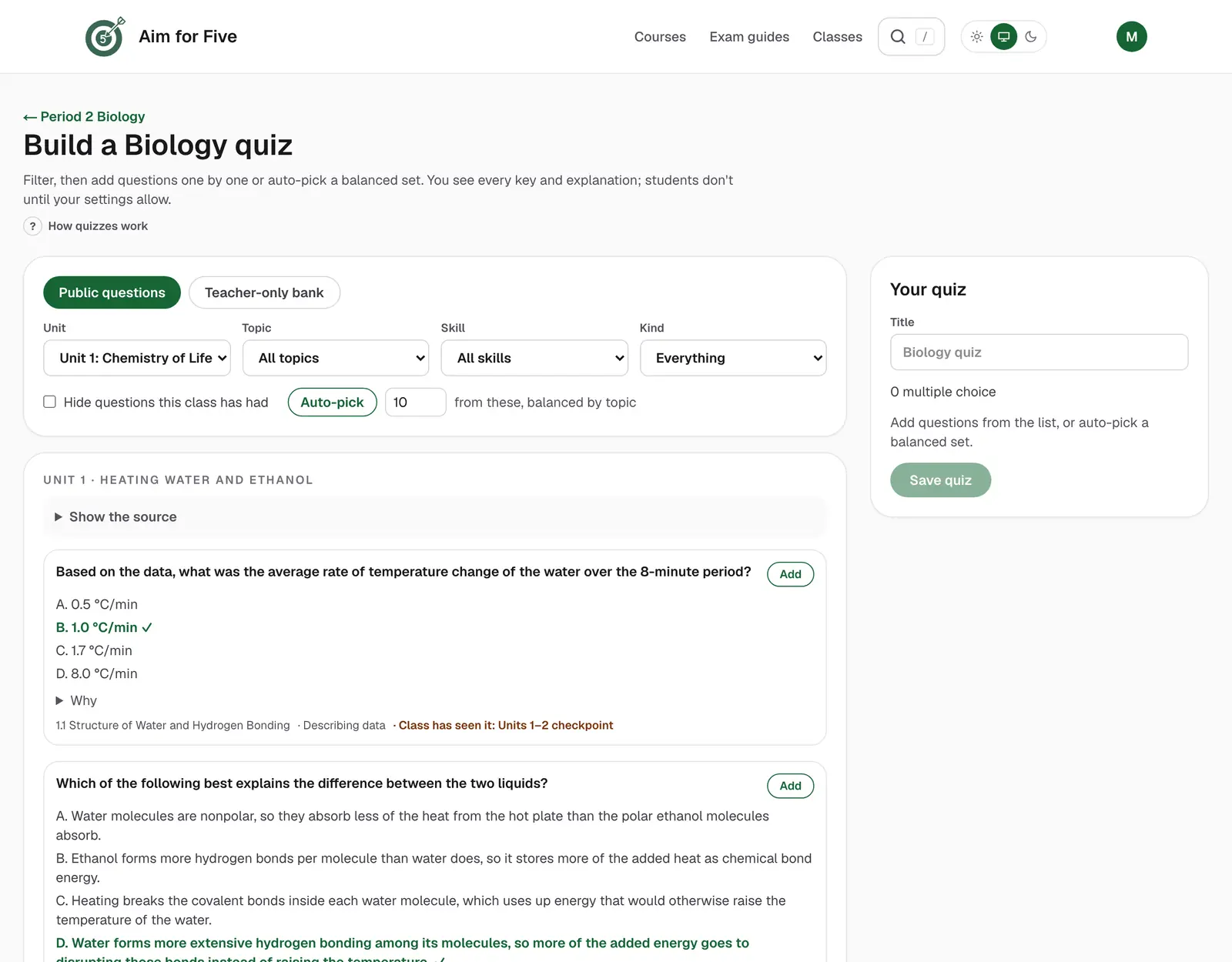
For a quiz with exactly the questions you want, open your quiz library (or Build a quiz on a class page):
- Filter by unit, topic, skill and kind, and choose Public questions or, once you're verified, Teacher-only bank. You see every answer and explanation as you go.
- Add questions one at a time, or Auto-pick a set balanced across topics. Put them in order and Save quiz.
- Assign it to one or more classes, each with its own due date.
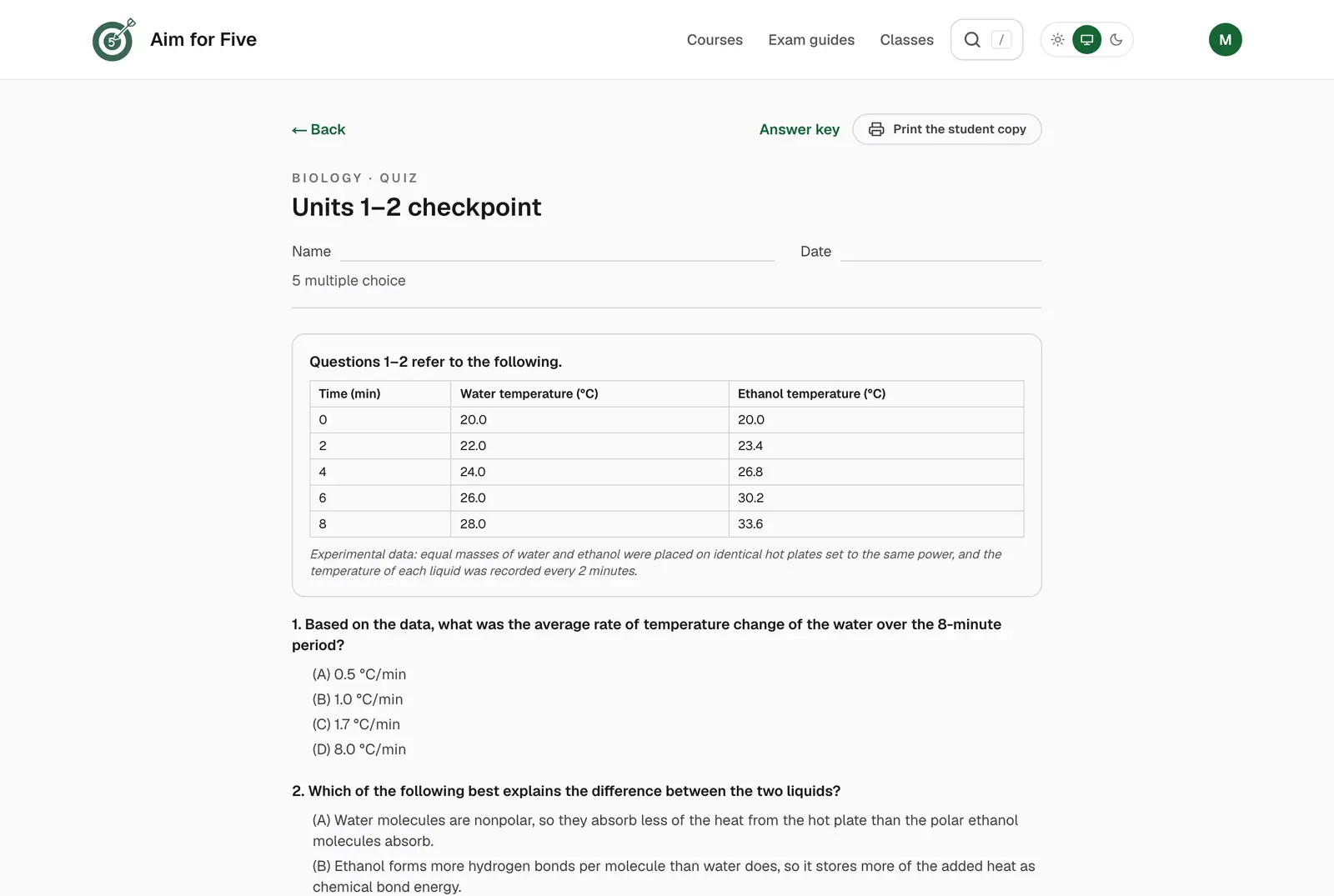
- Print gives a clean, numbered student copy with sources and lines to write on; Answer key prints separately, with explanations, model answers and rubrics. To make a PDF, choose Save as PDF in the print dialog.
Step 10: Warm-ups on the projector
Question of the day (on /teach or any class page) puts one multiple choice question on the projector in big type. Pick the course, unit and topic, give the class a minute to think, then show the answer and why it's right. Use Full screen for the cleanest view, and press Space or Enter to reveal the answer.
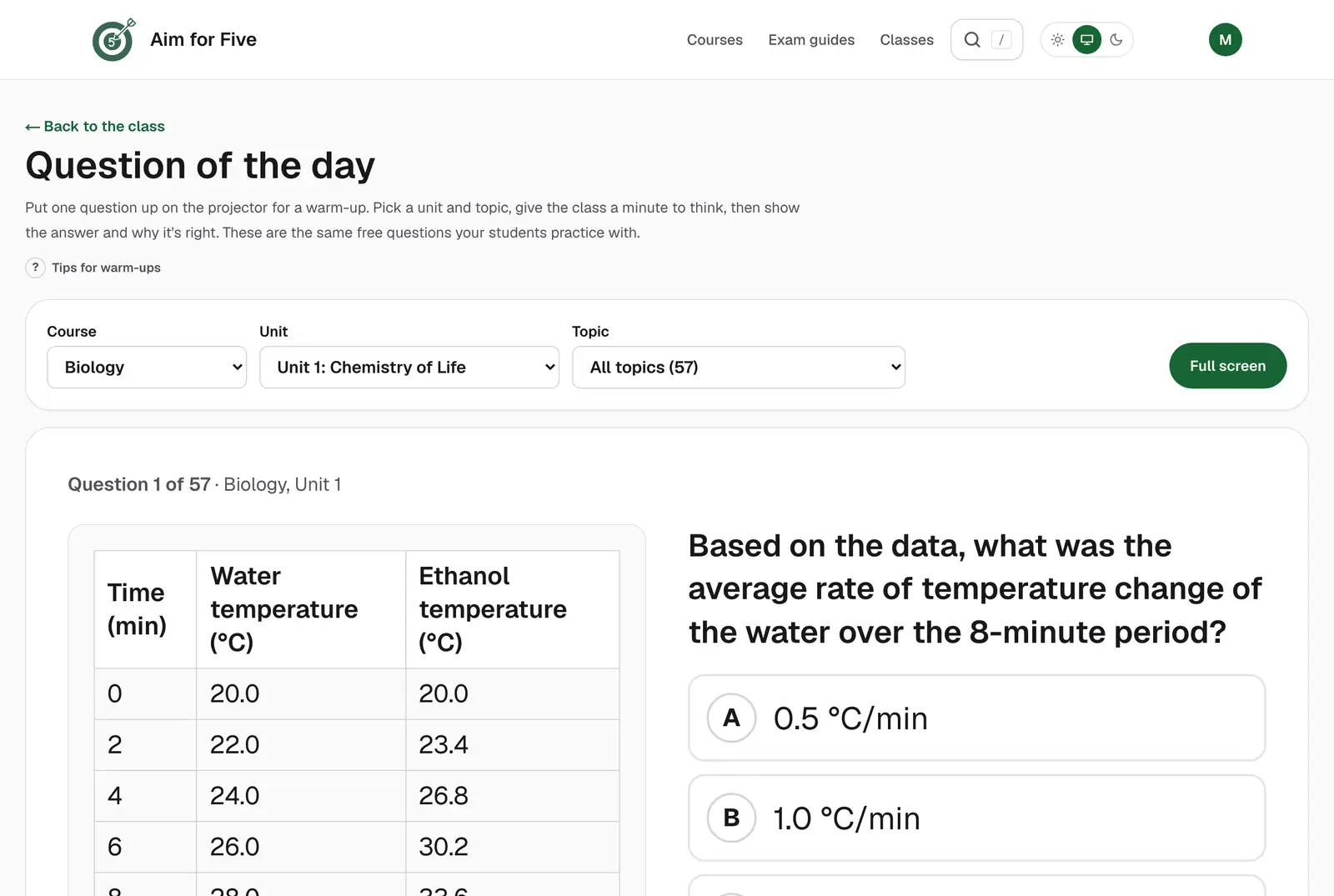
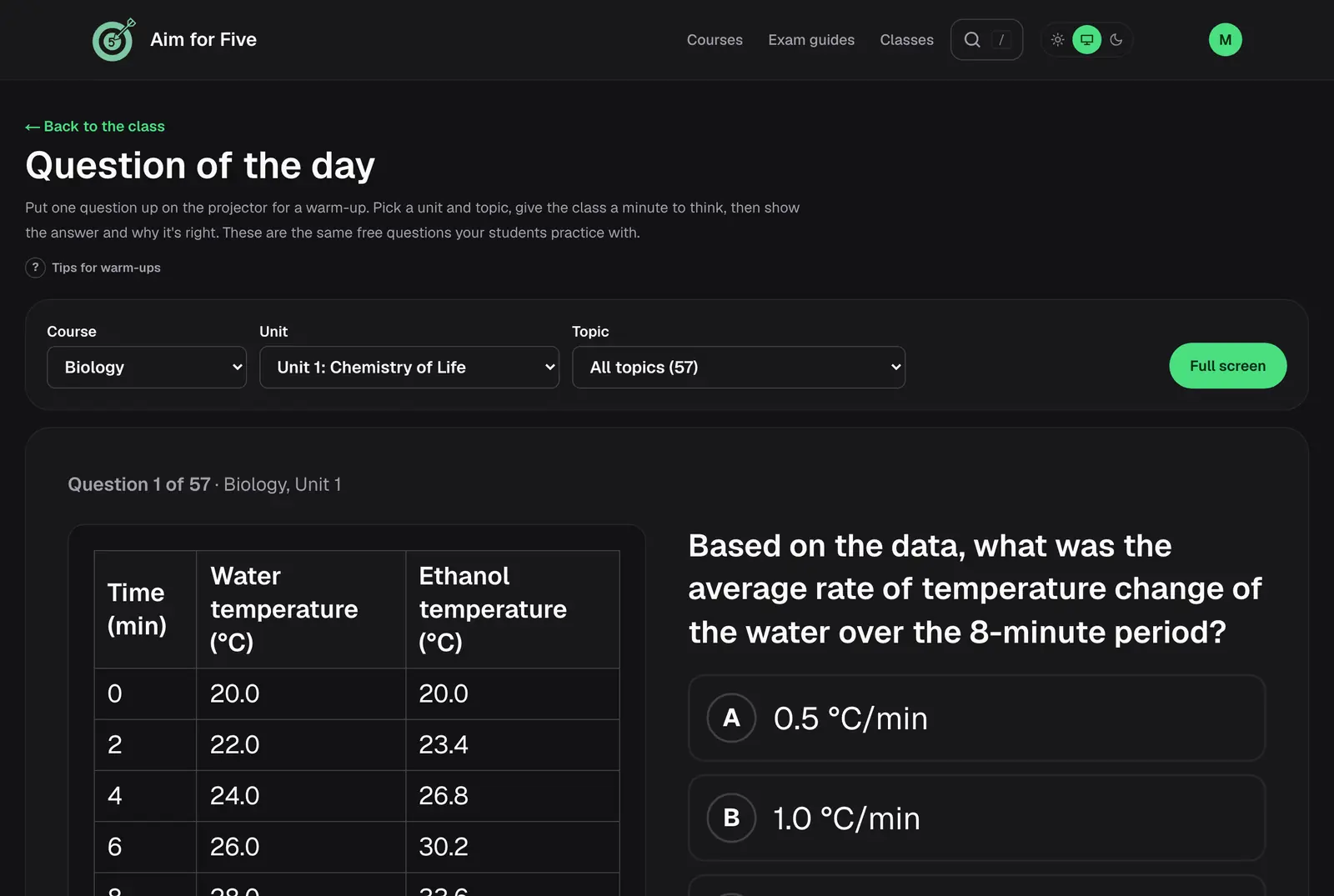
Warm-ups use the public questions students also practice with, so they're safe to show the whole room.
Step 11: Add a co-teacher
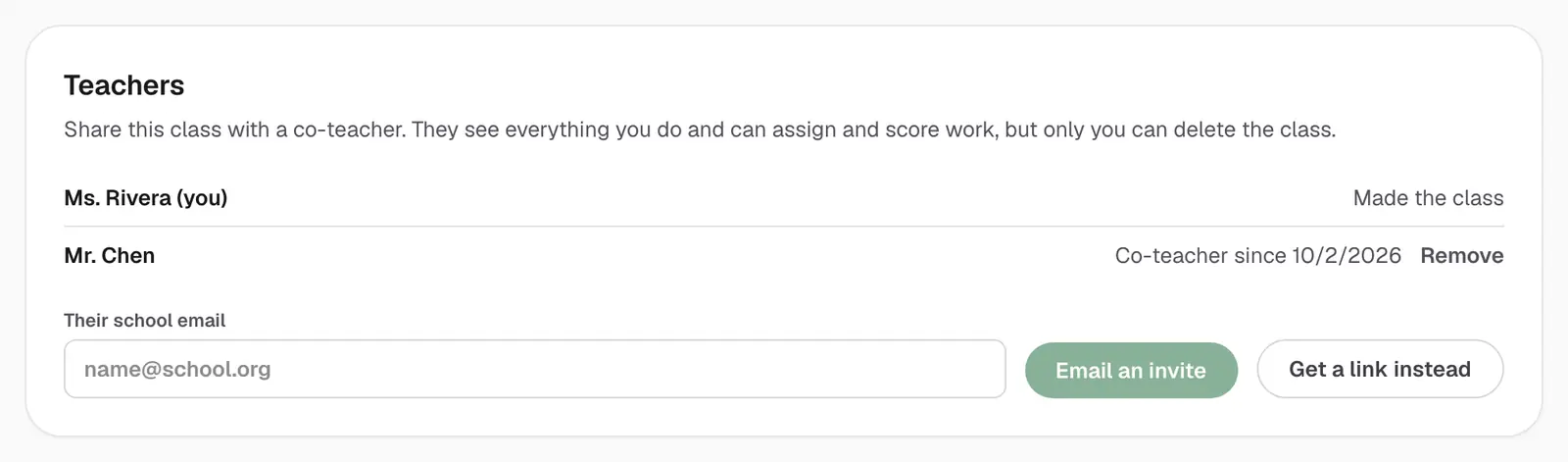
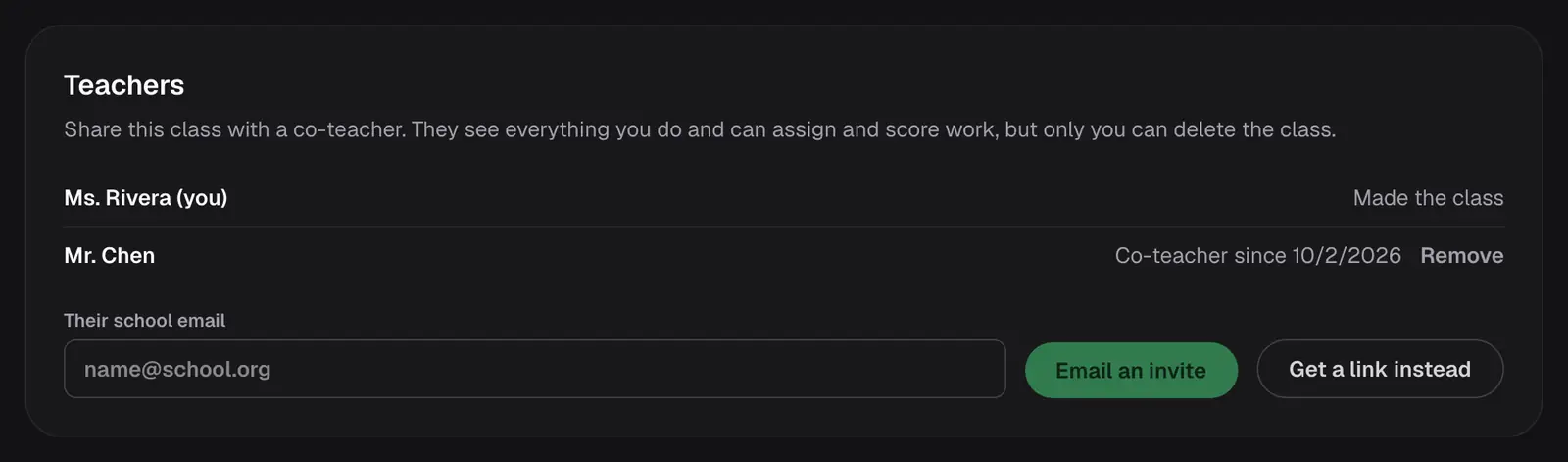
Share a class with a co-teacher, student teacher or department colleague. On the class's Students tab, under Teachers, type their email and choose Email an invite, or Get a link instead to send it yourself. Co-teachers see and do everything you can, including assigning and scoring, except delete the class.
Step 12: Archive at the end of the year
When the school year ends:
- Download the gradebook if you want a copy of the scores.
- Choose Archive at the top of the class page. The class is hidden from your list and becomes read-only: students can't join or turn in work, and nothing is deleted. You can Restore it any time.
- Delete removes the roster, assignments and all the work turned in, for good. Archiving is usually the better choice.
Next year, make fresh classes with new codes. Your quiz library carries over.
Need a hand?
- Spot a mistake in a question? Use Report a problem under it. Reports from teachers are looked at first.
- Questions about privacy, AI scoring or AP Classroom are answered in the teacher questions.
- Anything else, send us a message. We read every one.